Komodo v2 is a significant release. The headline addition is Docker Swarm cluster management, but the change you will actually spend time on during the upgrade is the new authentication model. Passkeys are gone, replaced by PKI with auto-generated Ed25519 keypairs. This guide covers the full procedure for a typical setup: one Core server running Docker Compose with MongoDB, and multiple remote servers running Periphery as a systemd service.
If you are setting up Komodo from scratch, start with the setup guide instead:
Managing Docker Across Multiple Servers with Komodo
Deploy Komodo Core with Docker Compose and install Periphery agents on remote servers to manage Docker containers, stacks, and builds from a single dashboard.
What changed in v2
The biggest new feature is Docker Swarm management. You can now create and manage Swarm clusters directly from the Komodo UI, not just standalone Docker hosts. This is a whole new category of functionality on top of the existing Compose stack and container management.
For the upgrade itself, these are the changes that matter:
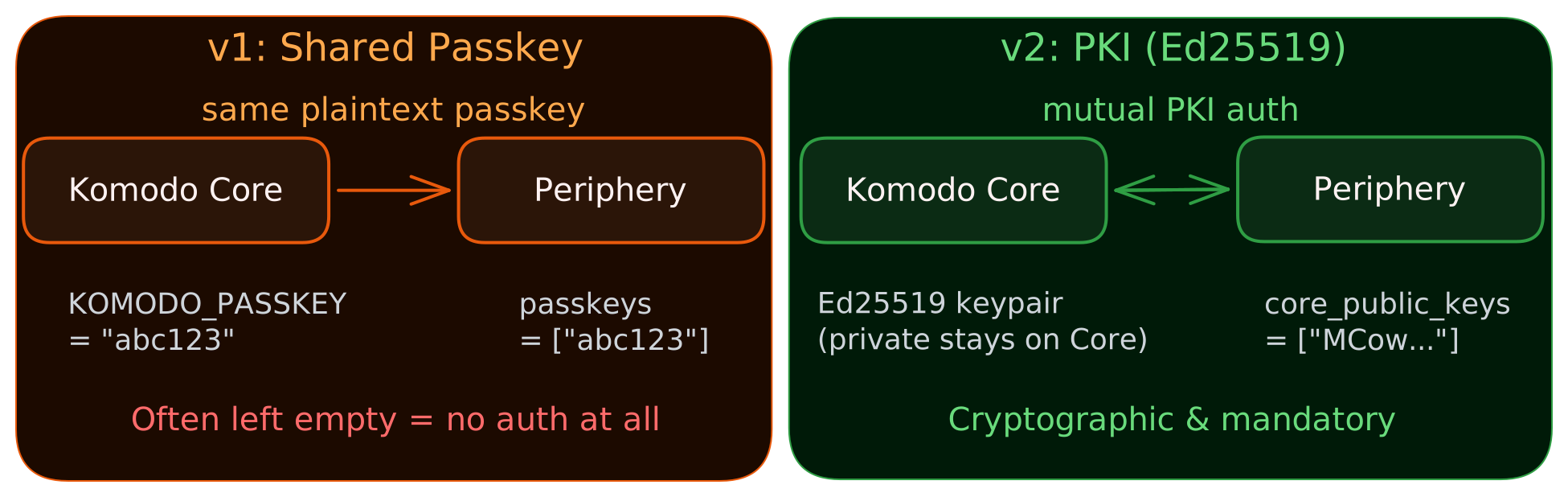
PKI authentication replaces passkeys. In v1, Core and Periphery shared a plaintext passkey. In v2, both Core and Periphery generate their own Ed25519 keypairs. Core gets the Periphery’s public key (or vice versa when using outbound connections), and authentication is mutual. Both sides prove their identity cryptographically. This is a real security improvement since v1 passkeys were often left as defaults or not set at all.
All containers need init: true. Docker containers don’t run an init system by default. Komodo’s processes spawn children that need reaping, and without init they accumulate as zombies. This was always technically a problem, but v2 makes it explicit and required.
The :latest image tag is gone. You must use :2 to track v2 releases, or pin to a specific version like :2.1.1. This prevents accidental major version jumps from auto-updaters, which is the right call for infrastructure tooling.
Other additions: outbound Periphery connections (Periphery initiates a WebSocket to Core instead of the other way around), built-in 2FA via passkeys and TOTP, multi-login account linking, and interactive OpenAPI docs at /docs.
Before you start
Check OpenSSL compatibility
v2 binaries are compiled against OpenSSL v3. If your servers run Ubuntu 20.04, Debian Bullseye, or anything else shipping OpenSSL v1, the systemd Periphery binary will not work. You would need the containerized Periphery instead, or compile from source.
openssl versionYou need 3.x. Ubuntu 22.04+ and Debian Bookworm+ are fine.
Check your Action scripts
If you use Komodo’s TypeScript Action scripting, the execute_terminal API was renamed to execute_server_terminal in v2. Grep for execute_terminal in your scripts and update the calls before upgrading. The new version also consolidates terminal creation with initialization parameters.
Automating Docker with Komodo — Builds, Syncs, and Procedures
Use Komodo's Resource Syncs for GitOps, Procedures for automated workflows, Builds for CI/CD pipelines, and the CLI for headless Docker management.
Know your Periphery install method
Periphery can run as a systemd service (binary on the host) or as a Docker container. The upgrade steps differ:
- Systemd: re-run the setup script, edit the TOML config, restart the service
- Docker: update the image tag, add
init: trueand akeysvolume, redeploy
Most production setups use systemd because Periphery needs access to the Docker socket and host filesystem. The rest of this guide covers the systemd approach.
Backup
Do this first. Not optional.
1. Database backup
If your MongoDB data is on a bind mount (check your compose file for something like ./data/mongo-data:/data/db), run mongodump and the archive lands directly on the host filesystem:
docker exec <mongo-container> mongodump \
  --username=<db_user> --password=<db_pass> \
  --authenticationDatabase=admin \
  --db=komodo \
  --archive=/data/db/pre_v2_backup.archive
The archive appears at <your-data-dir>/mongo-data/pre_v2_backup.archive on the host. If you use named Docker volumes instead of bind mounts, you will need docker cp to extract it.
2. Config file backups
On the Core server:
cd /path/to/komodo
cp .env .env.bak_v1
cp compose.yaml compose.yaml.bak_v1
On every Periphery server:
sudo cp /etc/komodo/periphery.config.toml /etc/komodo/periphery.config.toml.bak_v1Upgrading Core
Three things need changes: the compose file, the environment file, and a new directory for PKI keys.
1. Update compose.yaml
Add init: true to the core service. Add a volume mount for PKI keys. Change the default image tag fallback from latest to 2:
  core:
    image: ghcr.io/moghtech/komodo-core:${COMPOSE_KOMODO_IMAGE_TAG:-2}
    labels:
      komodo.skip:
    init: true
    restart: unless-stopped
    # ... rest stays the same ...
    volumes:
      - ${COMPOSE_KOMODO_BACKUPS_PATH}:/backups
      - ./keys:/config/keys
The keys volume is where Core stores its auto-generated Ed25519 keypair. We use a bind mount here instead of a named Docker volume so the key files are directly visible and easy to back up from the host. If you need to recreate the entire Docker setup, named volumes can get pruned accidentally. The tradeoff is that bind mount permissions can be fiddly with non-root containers, but Komodo runs as root by default so this is not an issue.
2. Update .env
Change the image tag:
COMPOSE_KOMODO_IMAGE_TAG=2Clean up the KOMODO_FIRST_SERVER variable if it exists. This auto-creates a server record pointing to https://periphery:8120 (the containerized periphery) on first boot. If your servers are already registered from v1, it does nothing useful and can trigger a non-fatal deserialization error on first v2 boot. Comment it out:
# KOMODO_FIRST_SERVER=https://periphery:81203. Deploy
Create the keys directory and bring up the new stack:
mkdir -p keys
docker compose up -d
Docker pulls the v2 image and recreates the Core container. MongoDB stays running, no data loss.
4. Retrieve the Core public key
On first v2 boot, Core generates an Ed25519 keypair and logs the public key:
docker logs <core-container> 2>&1 | grep "Public Key"You will see something like:
Public Key: MCowBQYDK2VuAyEA...Save this string. Every Periphery instance needs it. You can also find it in the Komodo UI under Settings, or in the file ./keys/core.pub on the host.
Upgrading Periphery (systemd)
For each server running Periphery as a systemd service:
1. Update the binary
curl -sSL https://raw.githubusercontent.com/moghtech/komodo/main/scripts/setup-periphery.py | sudo python3The script downloads the v2 binary, replaces the old one, and restarts the service. It preserves the existing config and systemd service file.
2. Update the config
Edit /etc/komodo/periphery.config.toml and add the Core public key:
core_public_keys = ["MCowBQYDK2VuAyEA..."]The old passkeys field can stay as an empty array. v2 ignores it but it does not cause errors.
3. Restart and verify
sudo systemctl restart periphery
systemctl status periphery
Check the logs for Komodo Periphery version: v2.x.x to confirm the upgrade took. Verify the server shows as connected in the Core web UI before moving to the next one.
Inbound vs outbound connections
In v1, Core always connected out to Periphery. v2 adds a second option: Periphery can initiate a WebSocket connection to Core instead. Both directions use PKI for mutual authentication.
We stuck with the inbound model (Core connects to Periphery) for our setup:
- It matches the v1 topology. Core already knows all the Periphery addresses. No connection config changes needed on the Core side beyond the image upgrade.
- Less config per server. Outbound requires each Periphery to know Core’s address plus an onboarding key. That is another secret to manage and rotate.
- Easier to debug. You can curl the Periphery endpoint from the Core server to test connectivity. With outbound, you are debugging WebSocket connections instead.
If you want outbound connections instead
The outbound model makes sense when Periphery servers are behind NAT or firewalls that block inbound on port 8120. To set it up after upgrading to v2:
- If Periphery runs as a container, make sure
/config/keysis mounted so the auto-generated private key persists across restarts. - In the Komodo UI, go to Settings > Onboarding and create a new onboarding key. Enable privileged mode on it (this lets the key update an existing server’s expected public key, which is needed when migrating from inbound).
- Add these fields to your Periphery config (
periphery.config.tomlfor systemd, or environment variables for Docker):
## Address of Komodo Core (must be reachable from this host)
core_address = "demo.komo.do"

## The server name this Periphery should connect as
## For systemd: connect_as = "$(hostname)" uses the system hostname
connect_as = "<SERVER_NAME>"

## Onboarding key from Settings (not needed if reconnecting as an existing server)
onboarding_key = "<YOUR_ONBOARDING_KEY>"- Restart Periphery. It will connect to Core, authenticate with its keypair, and the privileged onboarding key will allow the server’s expected public key to update automatically. Once connected, you can disable privileged mode on the onboarding key.
For new servers being onboarded (not migrating from v1), privileged mode is not needed.
Common gotchas
Passkeys were never actually enforced
In many v1 installations, the Periphery passkeys config was left as an empty array. That meant any request to port 8120 was accepted without authentication. Core had KOMODO_PASSKEY set, but Periphery never checked it. v2 PKI fixes this by making authentication cryptographic and mandatory. If your v1 setup relied on this open access for custom tooling hitting the Periphery API directly, that tooling will break.
The stack_dir and repo_dir confusion
Double-check your Periphery configs during the upgrade. These directories are easy to mix up:
root_directory: base path for all Periphery datarepo_dir: where git repos are cloned (for Komodo’s Repo feature or git-based Stacks)stack_dir: where compose files live for Stacks
If you deploy stacks from a git source like Forgejo, the repos land in repo_dir. Make sure it points to the right place. A common mistake is having repo_dir point to a generic directory when it should match your actual repo storage.
TOML duplicate keys fail silently
TOML does not allow duplicate keys in the same section. If your Periphery config has:
root_directory = "/path/one"
root_directory = "/path/two"
The second value silently overwrites the first, or depending on the parser, the config is partially ignored. If you meant the second line to be repo_dir, fix it during the upgrade. Review all configs before restarting.
Standardize allowed_ips
Review the allowed_ips setting across all your Periphery servers. If some have IP restrictions and others don’t, that is a security inconsistency. The upgrade is a good time to fix it:
allowed_ips = ["10.x.x.0/24"]MongoDB does not need migration
If you run a reasonably modern MongoDB (5.x+), no database migration is needed. The v2 schema changes are additive and handled automatically by Core. FerretDB users should check the Komodo docs for any FerretDB-specific notes since v2 changed the FerretDB compose template.
Post-upgrade checklist
After all servers are upgraded and connected:
- All servers show as connected in the Komodo UI
- Core and Periphery versions both show v2.x.x
- System stats are updating (CPU, memory, disk)
- Container listing works on each server
- Deploy or restart a stack to confirm end-to-end functionality
- Check the next day that automated backups still run
- Monitor for zombie processes over a few hours (should be zero with
init: true)
Rollback
If things go wrong, here is how to get back to v1.
Core
cd /path/to/komodo
cp .env.bak_v1 .env
cp compose.yaml.bak_v1 compose.yaml
docker compose up -d
Database (if needed)
docker exec <mongo-container> mongorestore \
  --username=<db_user> --password=<db_pass> \
  --authenticationDatabase=admin \
  --db=komodo --drop \
  --archive=/data/db/pre_v2_backup.archive
Periphery
sudo cp /etc/komodo/periphery.config.toml.bak_v1 /etc/komodo/periphery.config.toml
sudo systemctl restart peripheryFurther reading
Managing Docker Across Multiple Servers with Komodo
Deploy Komodo Core with Docker Compose and install Periphery agents on remote servers to manage Docker containers, stacks, and builds from a single dashboard.
Automating Docker with Komodo — Builds, Syncs, and Procedures
Use Komodo's Resource Syncs for GitOps, Procedures for automated workflows, Builds for CI/CD pipelines, and the CLI for headless Docker management.